Desktop app
Workflow Automation
Turn the documents your team already handles into ready files — on your own PC, the same way every time.
- Set the workflow up once. After that, drop in the same kinds of files and get the same kind of result.
- Everything runs on your PC. Your files stay on that machine.
- You see each file as it is handled, and you get ready output files when the run finishes.
- Past runs stay in the app, so you can open last week’s work again.
A short look at the product
Two minutes on what a run looks like. For the longer walkthrough, use the full demo below.
Screenshots
From a stack of files to ready results.
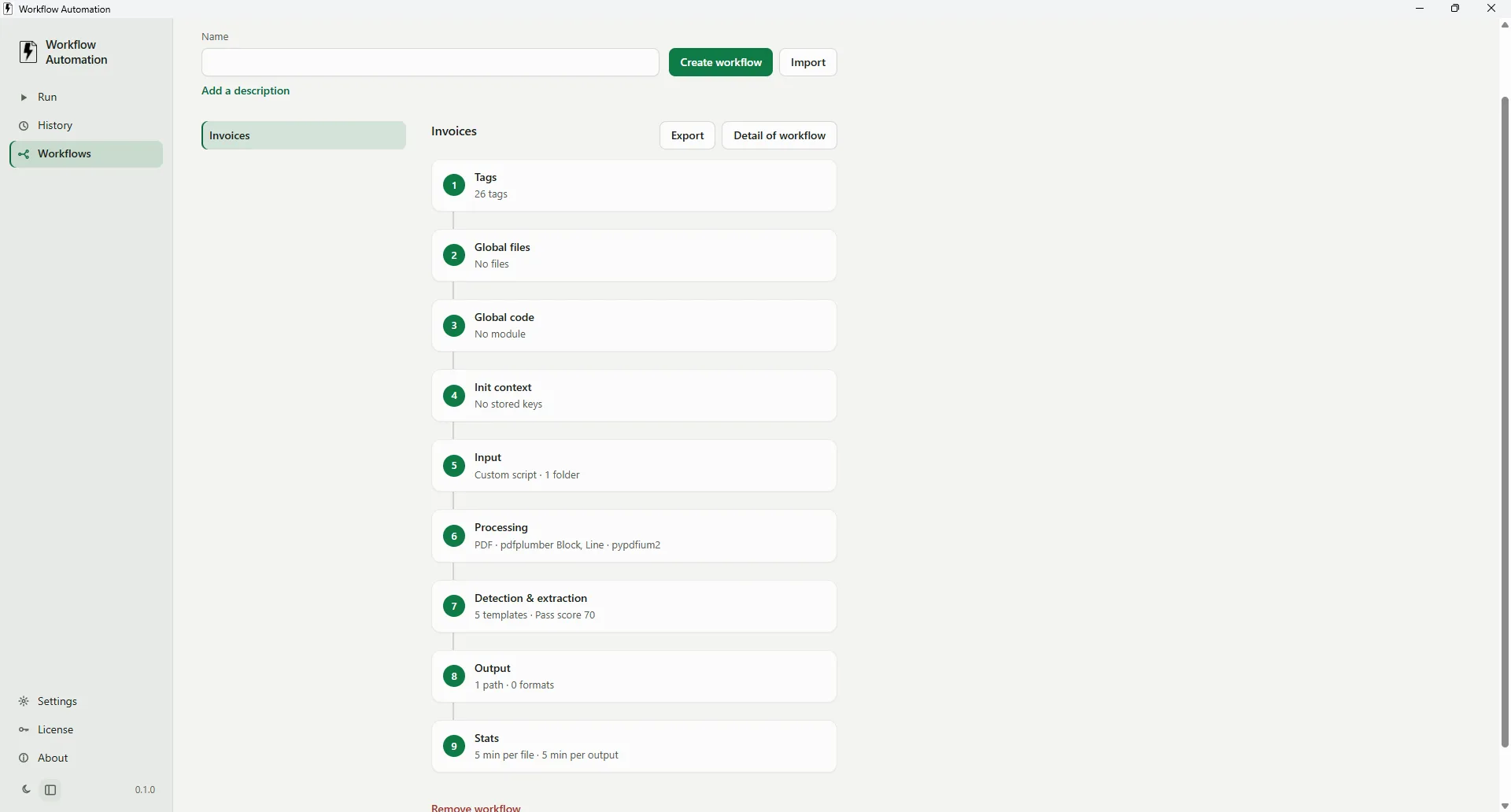
What you get from a workflow
One place for the rules, the files, the run, and the results your team needs next.
The fields you need
Name the columns once — vendor, amounts, dates, whatever your team already looks for — and every run fills them the same way.
How each file is read
Teach the app what a familiar document looks like. New files that match that layout are handled without redoing the setup.
Shared notes and helpers
Keep reference files and shared steps with the workflow so every run has what it needs.
One Start button
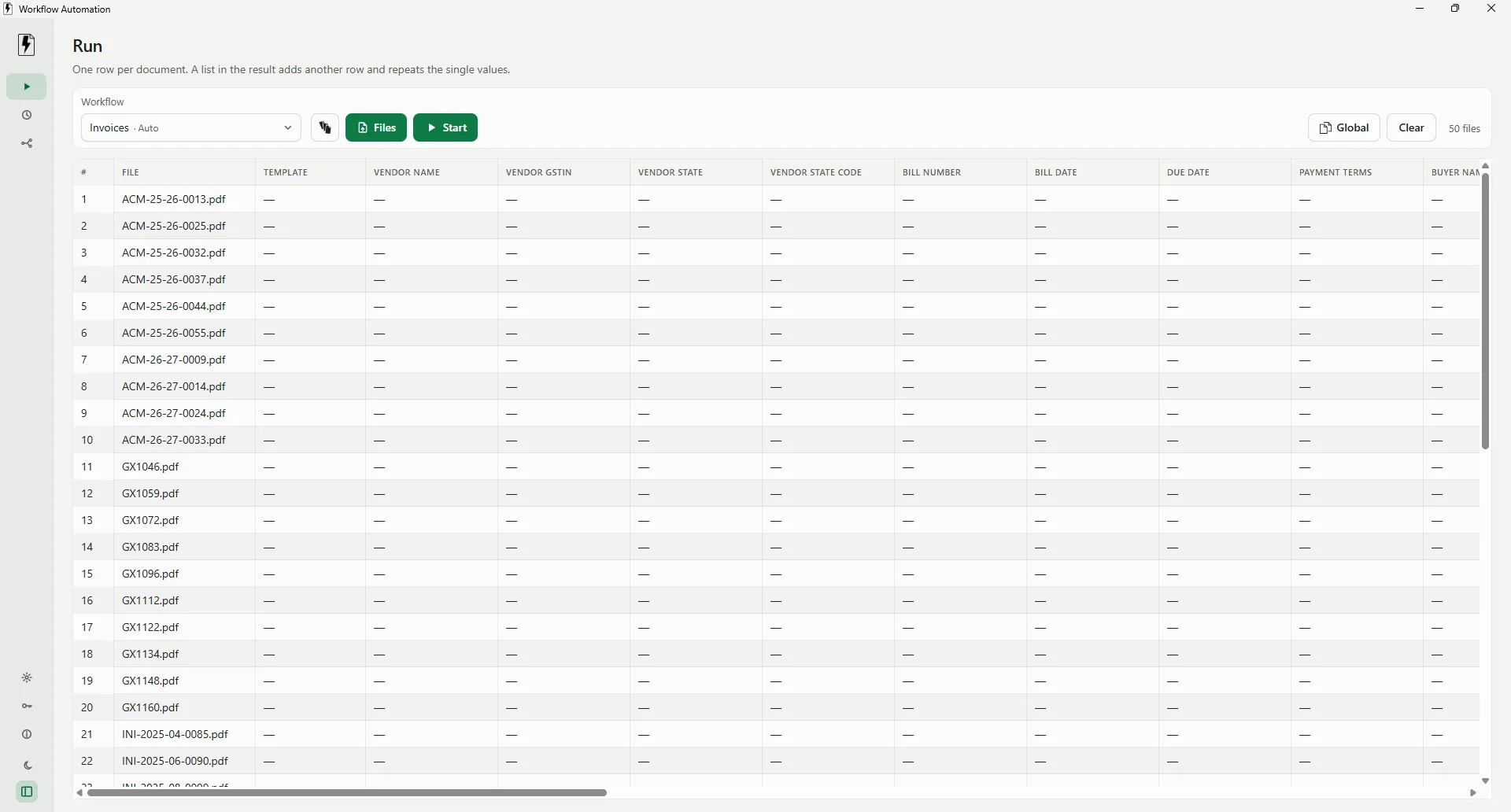
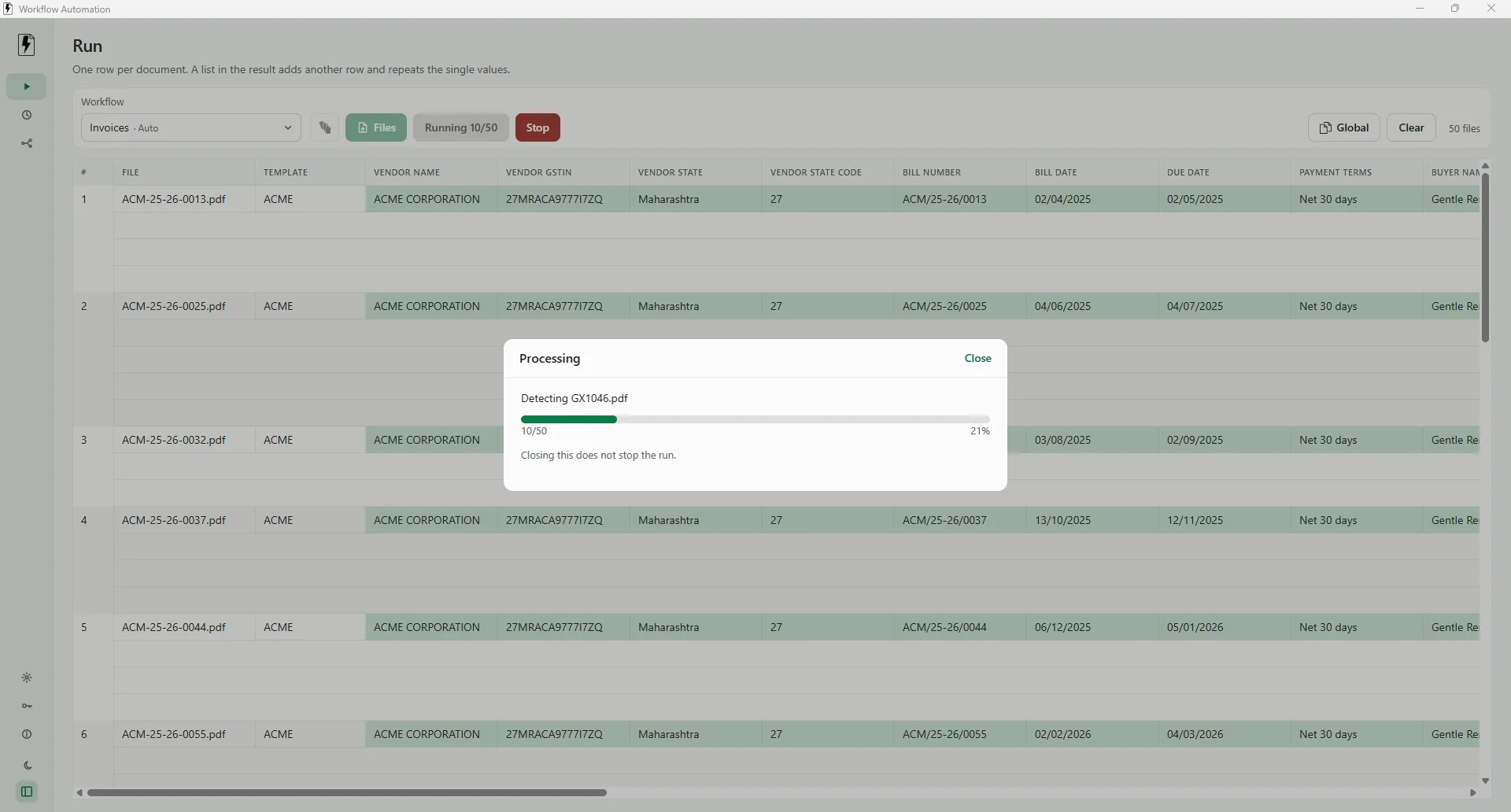
Choose the workflow, load the files, press Start, and watch the table fill as the work progresses.
Ready files when it finishes
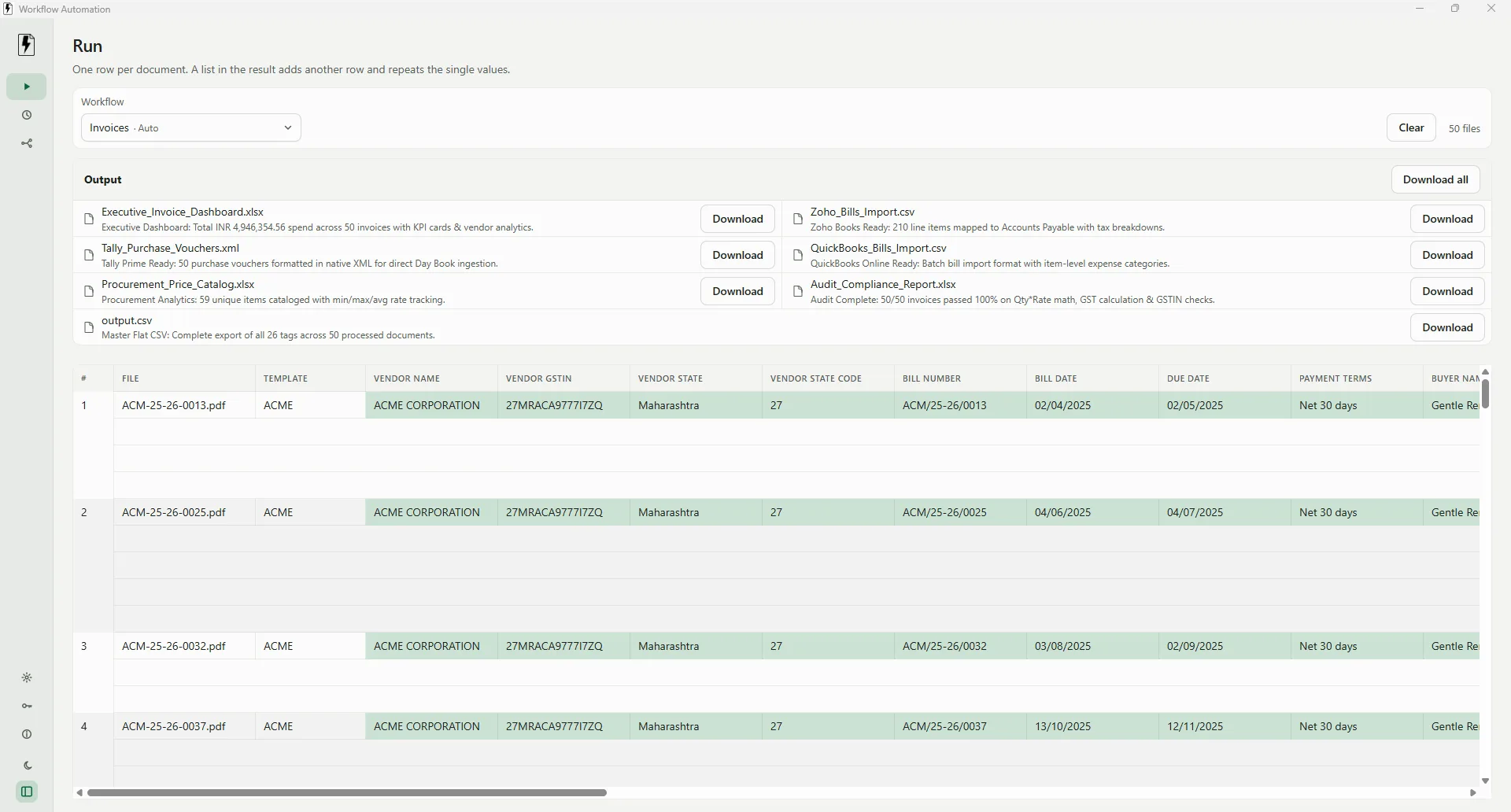
Each run saves the outputs you asked for — spreadsheets, reports, or files prepared for the next step — with a short note under each name.
A record you can reopen
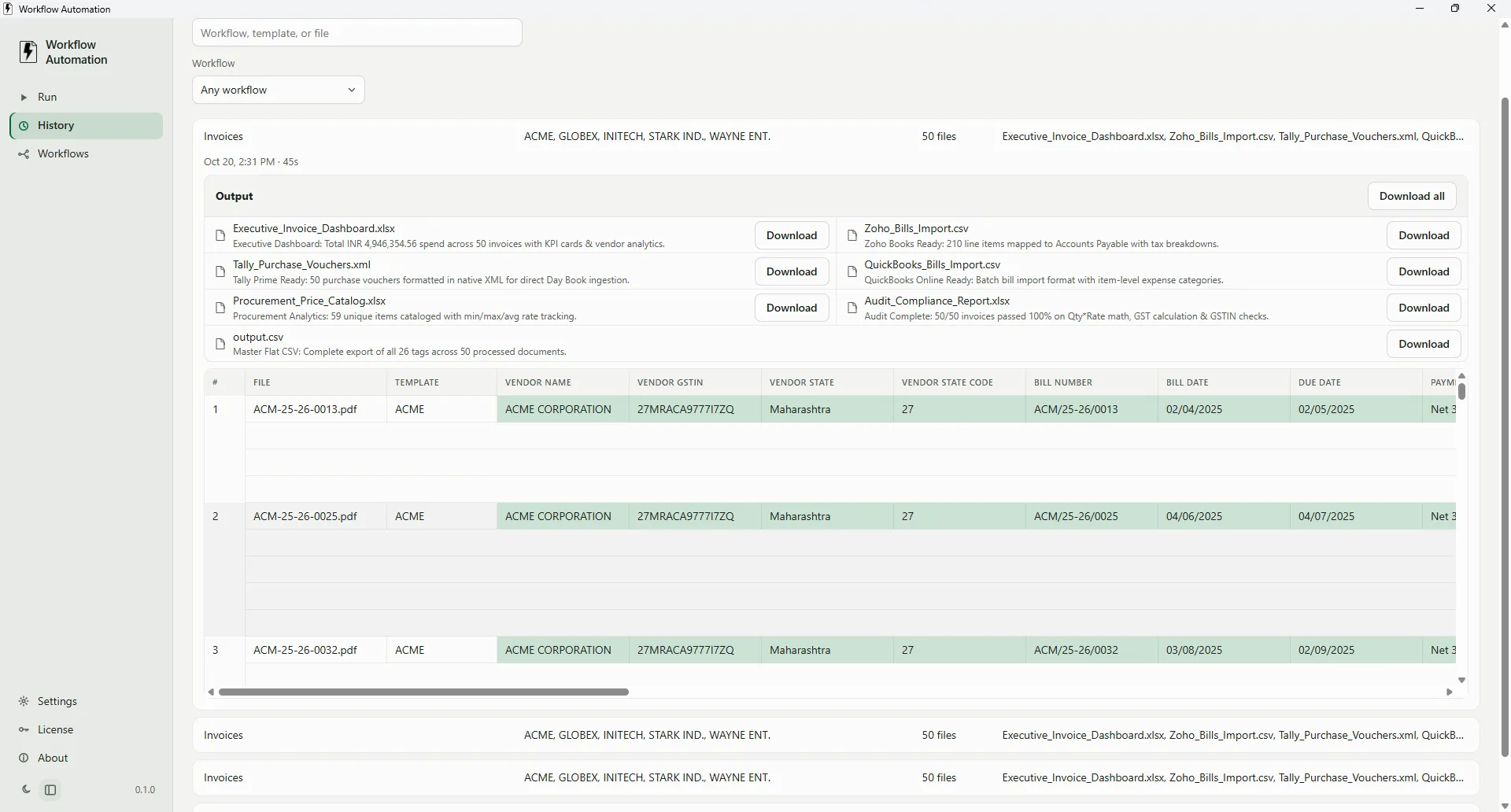
History keeps past runs with the same table and the same output files, so nothing disappears after you close the window.
Watch the full demo
Leave your name and work email. We will open the full walkthrough for you, and keep the details so we can follow up if useful.
Thanks. Opening the full demo in a new tab.
If nothing opens, watch it here.
The same files, every week?
Tell us which documents those are. If a team repeats the work, we can talk it through.